
Help & FAQs
Want to learn more? Give us a call today. 604-210-4600
(Note: Not Serving US Customers)
Set up email using the iOS Mail app
Step 1
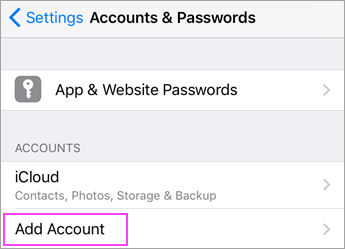
Go to your iPhone or iPad’s Settings > scroll down and tap Accounts & Passwords > Add Account.
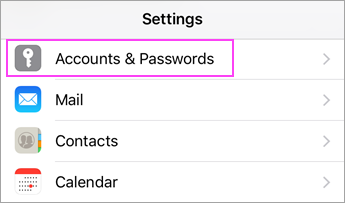
Note: If you’re on iOS 10, go to Mail > Accounts >Add Account.
Step 2
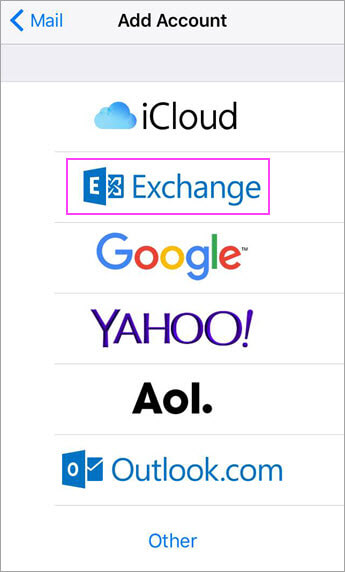
Select Exchange.
Step 3
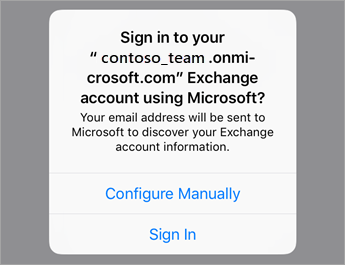
Enter your Office 365, Exchange, or Outlook.com email address and a description of your account. Tap Next.
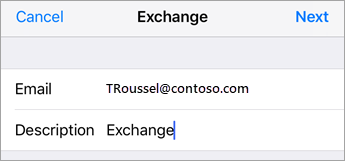
Tap Sign In.
Step 4
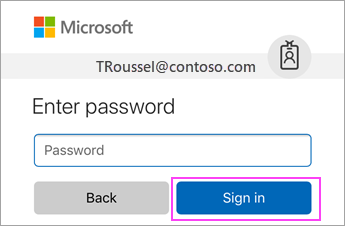
Enter the password associated with your email account. Tap Sign in or Next.
Step 5
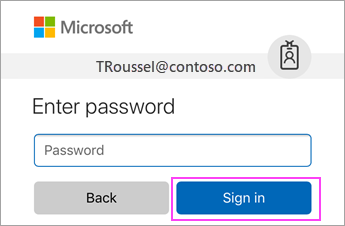
The Mail app may request certain permissions. Tap Accept.
Step 6
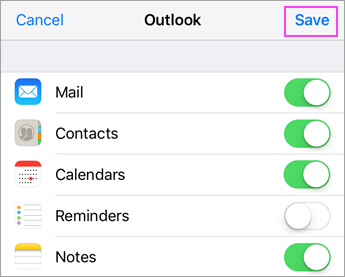
Choose the services you want to sync with your iOS device and tap Save. You’re done!
Request a Consultation
Protect your home with security that goes the extra mile to keep you aware and in control — from anywhere!